Sections
Artifactory: overview
The project's file storage: where people and agents put mock-ups, requirements, reports and logs, how to refer to a file from a task and how to find it.
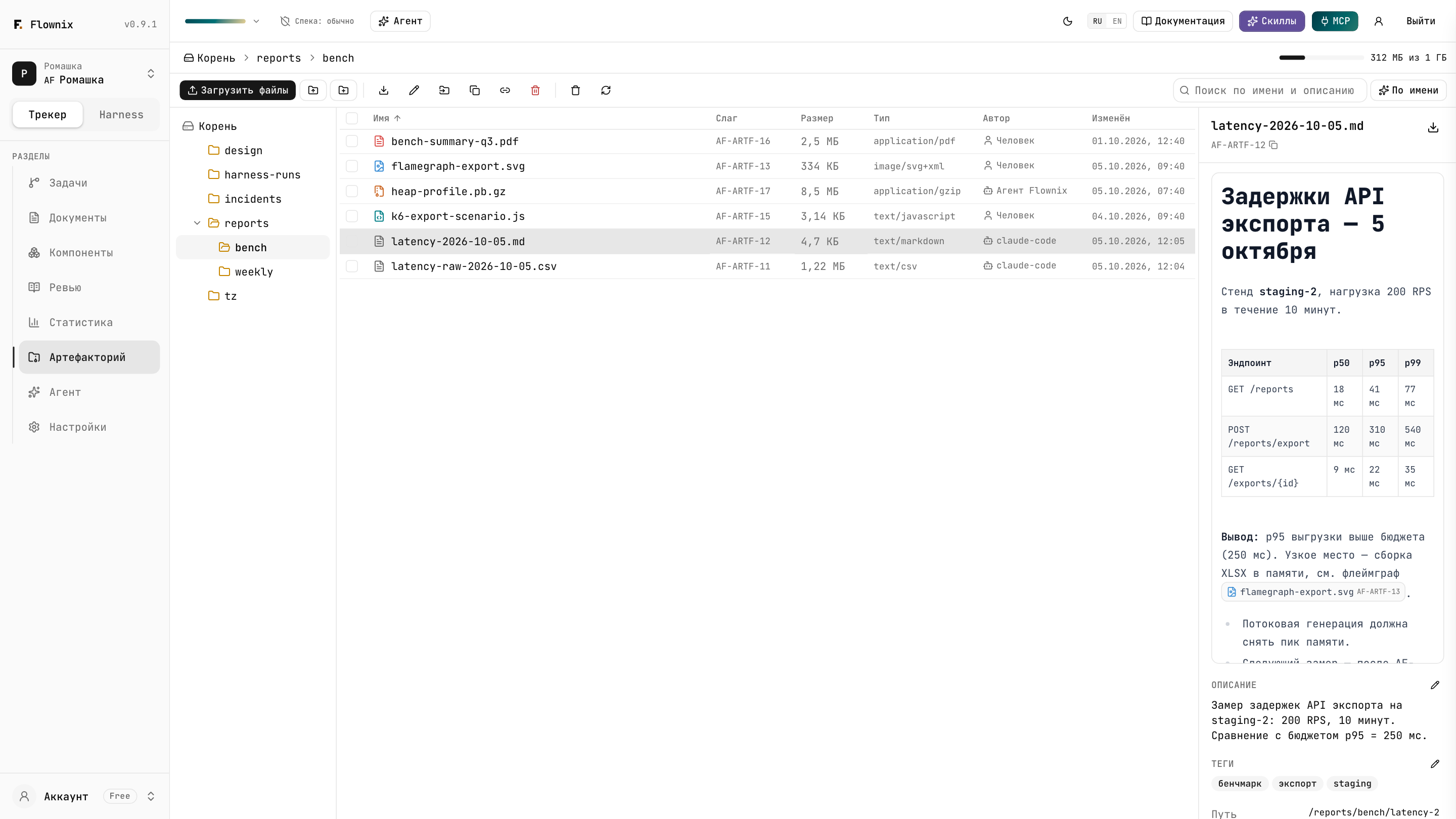
Artifactory is the project's file storage. It holds what work produces: agents' reports and benchmarks, logs, diffs, diagrams, exports. And what work starts from: mock-ups, requirements, dumps, error screenshots. Files live next to the tasks, not in a chat, an inbox or someone's "Downloads" folder, so a month later any project member — and any agent — can find them.
The essentials in a minute
Every file has its own slug
AF-ARTF-12, like AF-TASK-12 for a task. The slug doesn't change on rename, move or
upload of a new version, and is never reused after deletion.
A slug in text is a link
Mention AF-ARTF-12 in a task, comment or document — the text shows a chip with the file
name, and the file lists that task under "Where used".
Search by meaning
A file's name, folder, description and tags go into the project's semantic index. "Why did
the migration fail" finds migration-0042.log if it has a good description.
Versions and the trash
A new version of a file keeps its slug and references; older ones stay in the history. A deleted file stays in the trash for 7 days.
For people and agents
People work with files on the Artifactory screen, agents through the artifact_* MCP tools,
and the built-in agent right from the chat.
Your project only
Files are visible to members of the project's organization. There are no public links; a download link lives for 5 minutes.
What to put here
| Good fit | Why |
|---|---|
| Requirements, mock-ups, client specifications | Tasks refer to the original source, not a retelling |
| Agents' reports, benchmarks, logs | An agent's output outlives the session and can be found by meaning |
| Screenshots and dumps for bugs | A bug stays reproducible even when its author is unavailable |
| Harness step outputs | The next step gets them as input, and the run shows what it produced |
| Exports, diagrams, presentations | Everything the team needs, in one place next to the work |
Not a good fit: source code (it belongs in the repository), secrets and passwords (files are visible to the whole project organization), and anything you need to share outside the project — there are no public links.
How it works for you
- Folders. Files are organized in folders, like on a disk:
design/,reports/bench/,incidents/2026-10/. You can create, rename, move and delete folders. - Description and tags. The description (up to 500 characters) is the main thing people and semantic search use to find a file. File contents are not indexed for search.
- Author and source. Each file shows who put it there — a person or an agent (with the agent name and model) — and where it came from: "Upload", "Agent" or "Harness run".
- Quota. All files, their versions and the trash take up quota space. How much is used is shown in the screen header. Details in Limits.
Next
- The Artifactory screen — uploading, viewing, searching, the trash.
- Links and "Where used" — how to connect a file to work.
- Agents and harness — MCP tools, the built-in agent, runs.
- Use cases — what it looks like on real tasks.
- Limits and questions — sizes, quota, errors.