Sections
On this page
The Artifactory screen
How to upload files and folders, preview, describe, search, move, delete and restore files in the web interface.
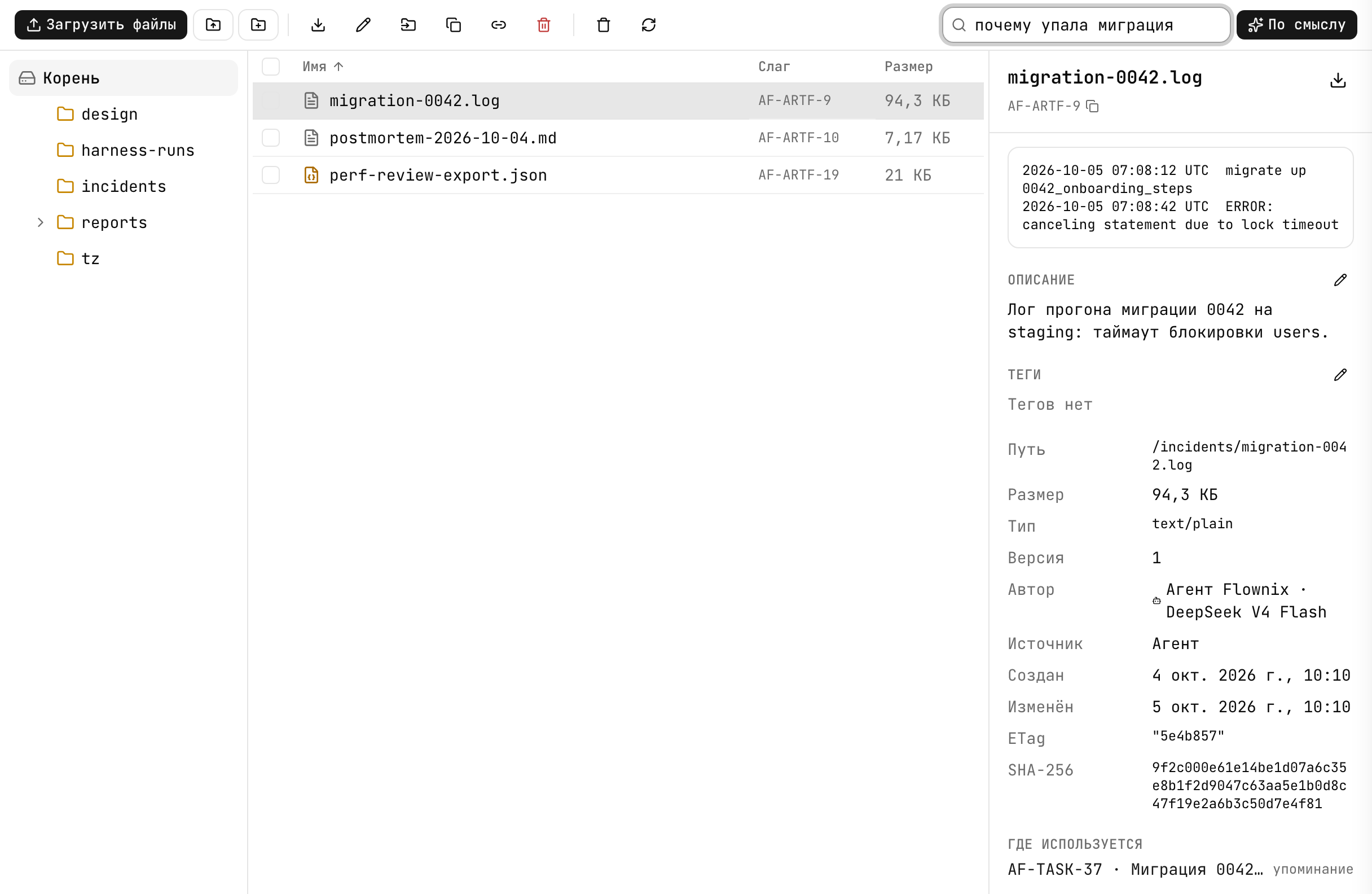
Open a project and select "Artifactory" in the sidebar. The current folder and the selected file are written to the page URL, so you can send a colleague a link to an open file — or copy it with the "Copy link" button.
Screen layout
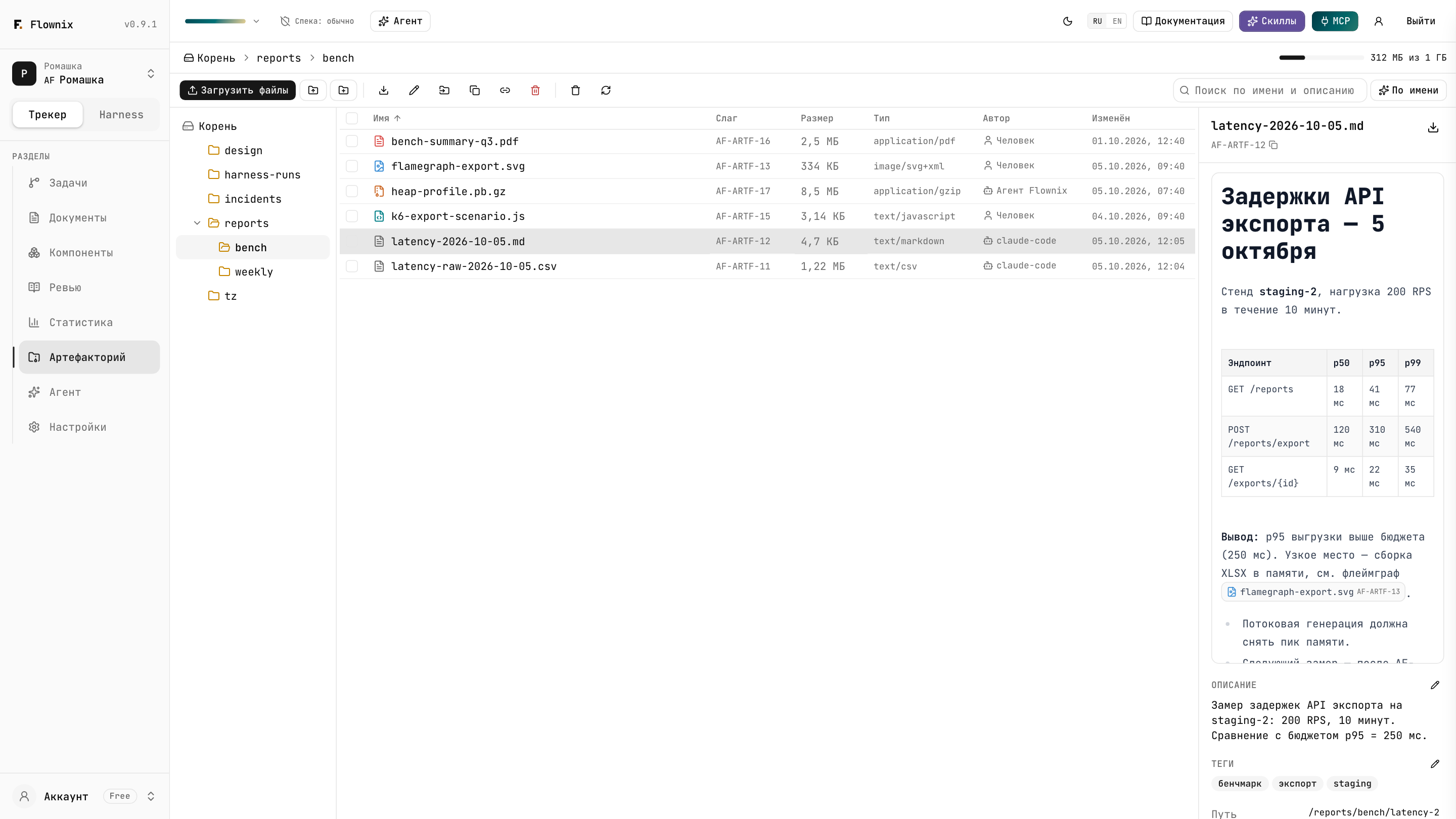
On a wide screen there are three columns; you can resize them by dragging the border (the screen remembers the width in your browser):
- "Folders" — the project's folder tree.
- Table — subfolders and files of the current folder: name, slug, size, type, author, modified date. Clicking a column header sorts by it; clicking again reverses the order. Hover over a name to see the file's description.
- Properties of the selected file: preview, description, tags, details, "Where used", version history.
Above them are breadcrumbs starting from "Root", the quota indicator and the action bar. On a phone there's no tree: a list with breadcrumbs, and properties open as a bottom sheet.
The screen updates on its own: if a colleague or an agent uploads a file, it appears without a reload.
Uploading
Three ways:
- "Upload files" — choose one or more files.
- "Upload folder" — choose a whole folder: its nested structure is preserved.
- Drag files or folders from your system straight into the table. The "Drop to upload to /…" highlight shows which folder they'll land in.
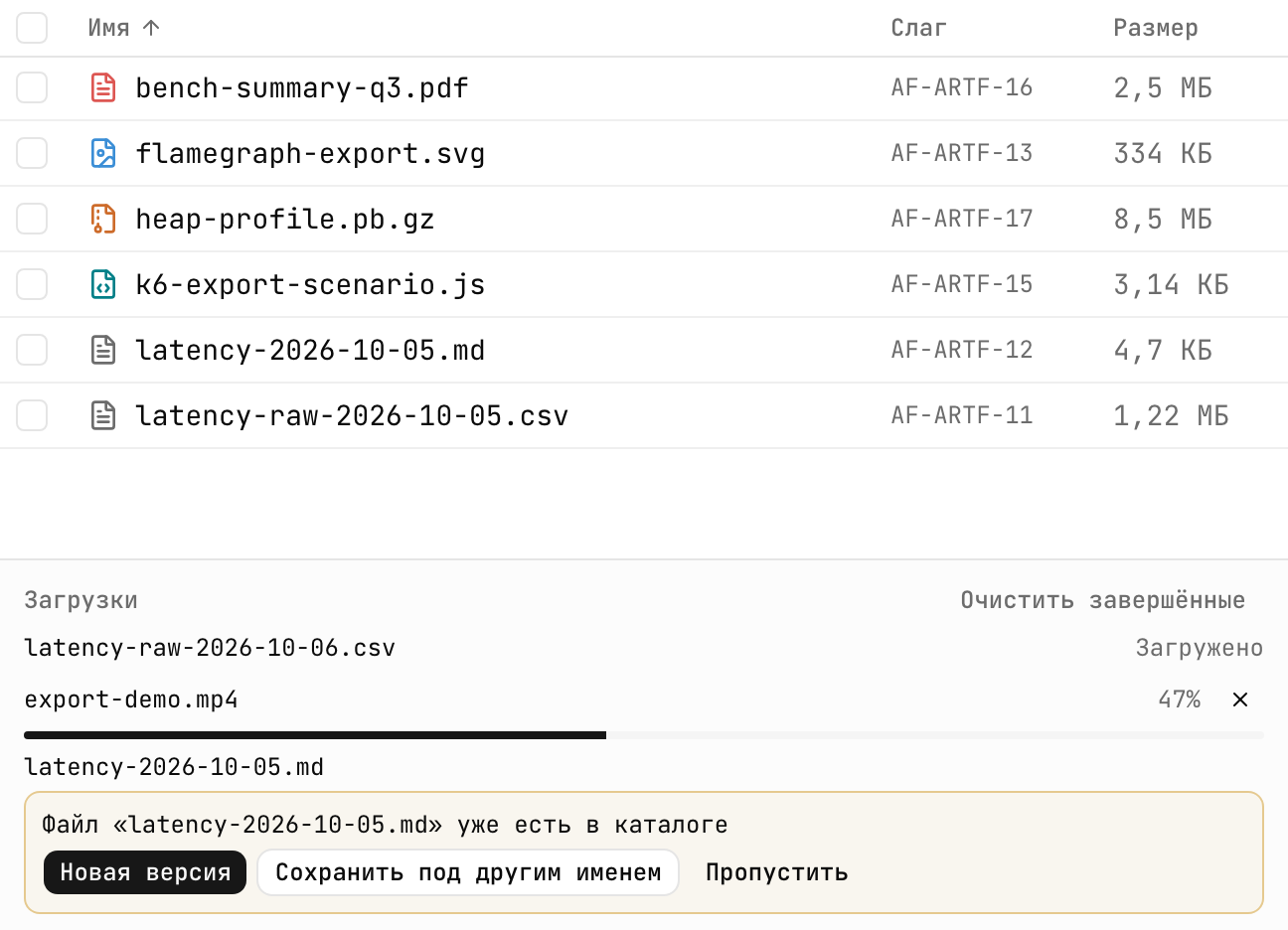
Files go into the current folder. An "Uploads" queue appears at the bottom of the table: percentage, speed, "Cancel" and "Retry" buttons, "Clear finished". Two uploads run at the same time; the rest wait. The queue keeps going if you switch to another folder. Before a large file uploads, you may briefly see "Computing checksum…" — that's how Flownix makes sure the file arrives intact.
A single file can be up to 5 GB. Large files are uploaded in parts; you don't need to do anything special for that.
If the name is taken
If the folder already has a file with that name, the upload pauses with the question "“…” already exists in this folder":
- "New version" — the file becomes the next version of the existing one. The slug, description and all references to it are kept; the old version stays in the history.
- "Save under another name" — enter a new name to get a separate file with its own slug.
- "Skip" — don't upload.
Selecting files
- Click a row to select a file and open its properties.
- Ctrl/⌘ + click adds a file to the selection or removes it.
- Shift + click selects a range.
- The checkbox in the header is "Select all".
- Click a folder to open it.
A "Selected: N" counter appears above the table.
Actions
Actions are on the bar above the table and in the right-click menu.
| Action | What for | How many files |
|---|---|---|
| Open | Show properties and preview | One |
| Download | Download the file | One |
| Rename | A new name; the slug and references don't change | One |
| Move | Move to another folder; a folder that doesn't exist gets created | One or more |
| Copy slug | AF-ARTF-12 — to paste into a task | One |
| Copy link | A link to the file in the app | One |
| Delete | Move to the trash | One or more |
| New folder | Create a folder inside the current one | — |
| Trash | Files deleted in the last 7 days | — |
| Refresh | Reload the list | — |
For folders, right-click — in the table or the tree — gives you "Open", "Rename", "Move" (an empty destination field means the root), "Copy link" and "Delete". Moving a folder moves all its contents; file slugs don't change. Deleting a folder removes it along with its subfolders, and the files go to the trash for 7 days.
You can't drag files between folders within the screen — use "Move".
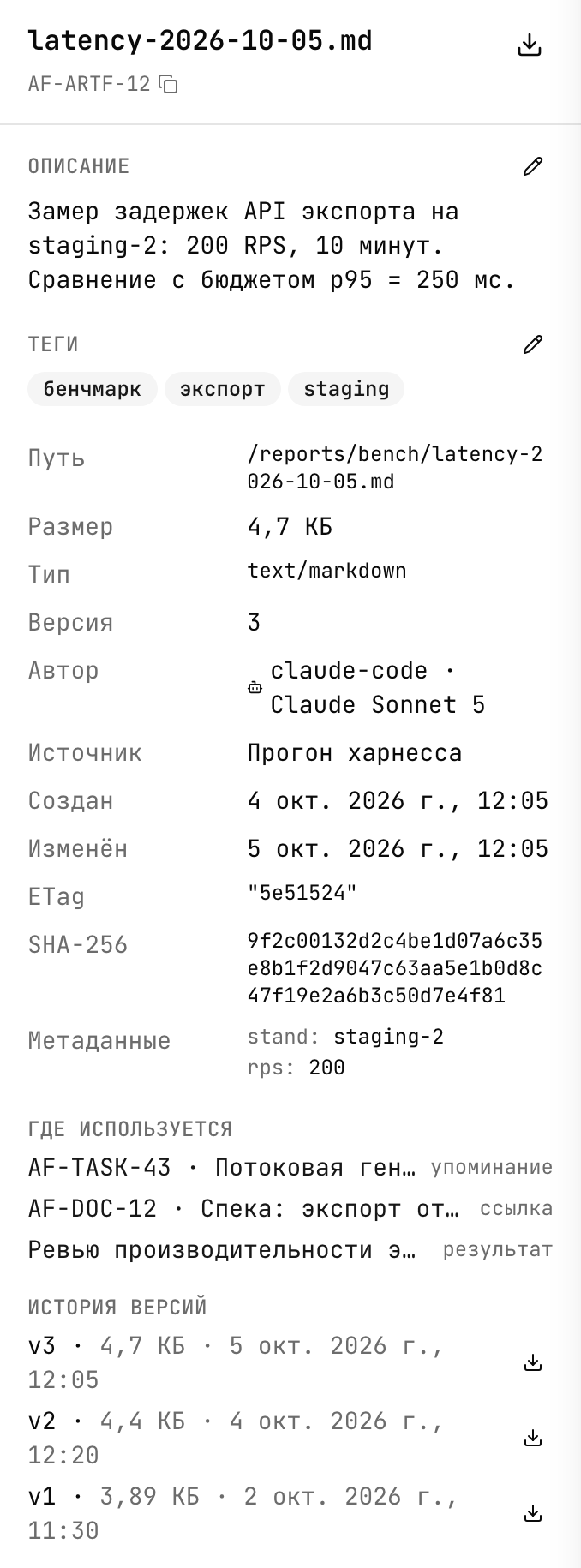
File properties
- Header — name, slug (click to copy) and "Download".
- Preview — see below.
- "Description" — the pencil opens the editor, up to 500 characters.
- "Tags" — comma-separated, up to 50 tags.
- Details — path, size, type, version, author (a person or an agent with its model), source ("Upload", "Agent", "Harness run"), created and modified dates, SHA-256 checksum, and metadata if an agent set it.
- "Where used" — tasks, documents and harness runs that reference the file. Details in Links and "Where used".
- "Versions" — appears when there's more than one version: number, size, date, and a download for any version.
Preview
| Type | How it's shown |
|---|---|
| Images (PNG, JPEG, GIF, WebP, AVIF, BMP, SVG) | Right away if up to 25 MB; larger ones with the "Show" button |
| Text, code, Markdown | Up to 1 MB; code with highlighting, Markdown rendered |
| Built-in viewer up to 30 MB | |
| Video and audio | Download only for now — playback will come later |
| Other (archives, DOCX, XLSX…) | "No preview for this type" and a "Download" button |
Search
The field above the table searches the whole project, not just the current folder. The switch next to it:
- "By name" — matches in the name, description and slug. Use it when you know what you're
looking for:
bench,AF-ARTF-12. - "By meaning" — by the meaning of the name, folder, description and tags. Use it when you only remember what the file is about: "speed benchmark after the cache", "onboarding mock-up". File contents aren't taken into account.
Files in the trash don't show up in search.
Deleting and the trash
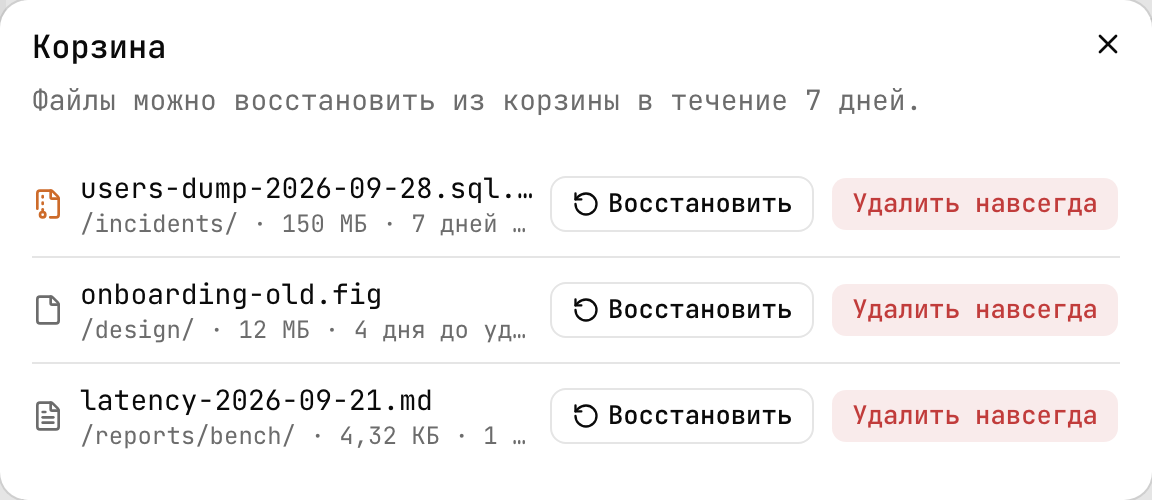
"Delete" moves files to the trash: "Files can be restored from the trash for 7 days." If something references a file, the dialog shows exactly what in advance, along with a "Delete anyway" button — after that, the references will point to a deleted file.
"Trash" shows deleted files and how many days they have left ("N days left" or "deleted today"):
- "Restore" — return the file to where it was. If the folder no longer exists, it's recreated. If a file with the same name is already there, restoring fails — rename or move the file in the way and try again.
- "Delete forever" — erase immediately and free up quota space.
After 7 days, files in the trash are deleted automatically.
Quota
The indicator in the header shows "used of available". From 80% it turns yellow and a "Plans" link appears next to it; at 100% it turns red and the upload button is disabled: "Quota exhausted — uploads are unavailable". You can still read, download, move and delete files when the quota is full. Details in Limits.
Files in tasks and documents
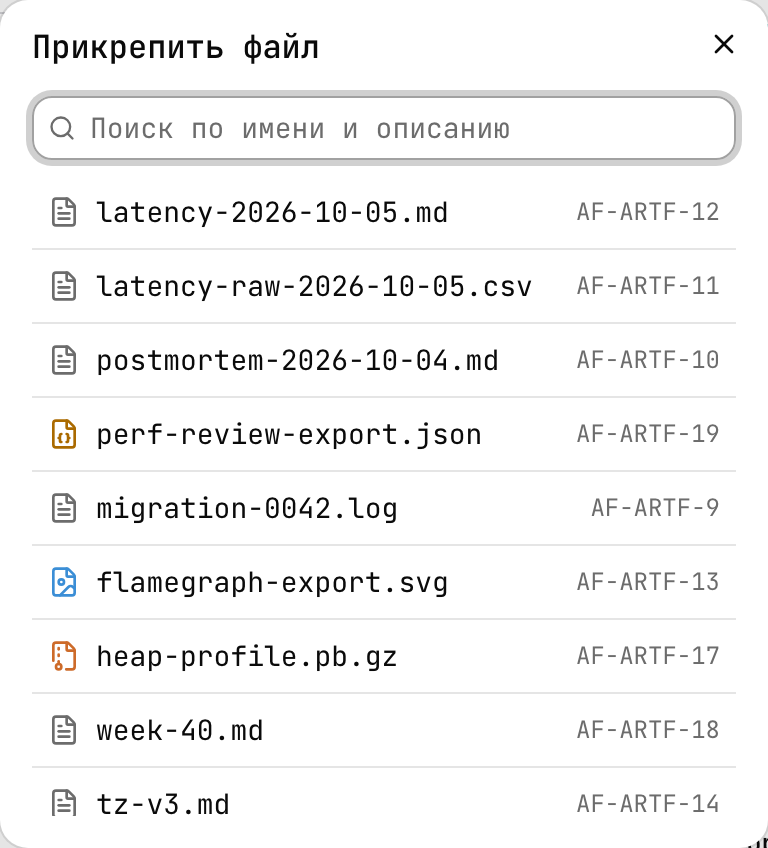
The node description editor, the comment field and the document editor have an "Attach from Artifactory" button. It opens the "Attach a file" dialog with search and the 30 most recently modified files; clicking one inserts the file's slug into the text. After saving, the slug turns into a chip with an icon and the file name, and clicking the chip opens the file in Artifactory.