Sections
On this page
Working in the chat
How to open the agent, manage sessions, invoke skills and entities, choose a model, answer questions and confirm actions.
How to open the agent
There are three ways, and all of them open the same conversation:
- The "Agent" button in the header of any project page. The agent panel slides in from the right; the page underneath stays usable — you can read a task and talk about it with the agent at the same time. While the agent is replying and the panel is closed, a dot pulses on the button.
- The Ctrl+J shortcut (⌘J on a Mac) opens and closes the panel. Esc closes it when the focus is inside.
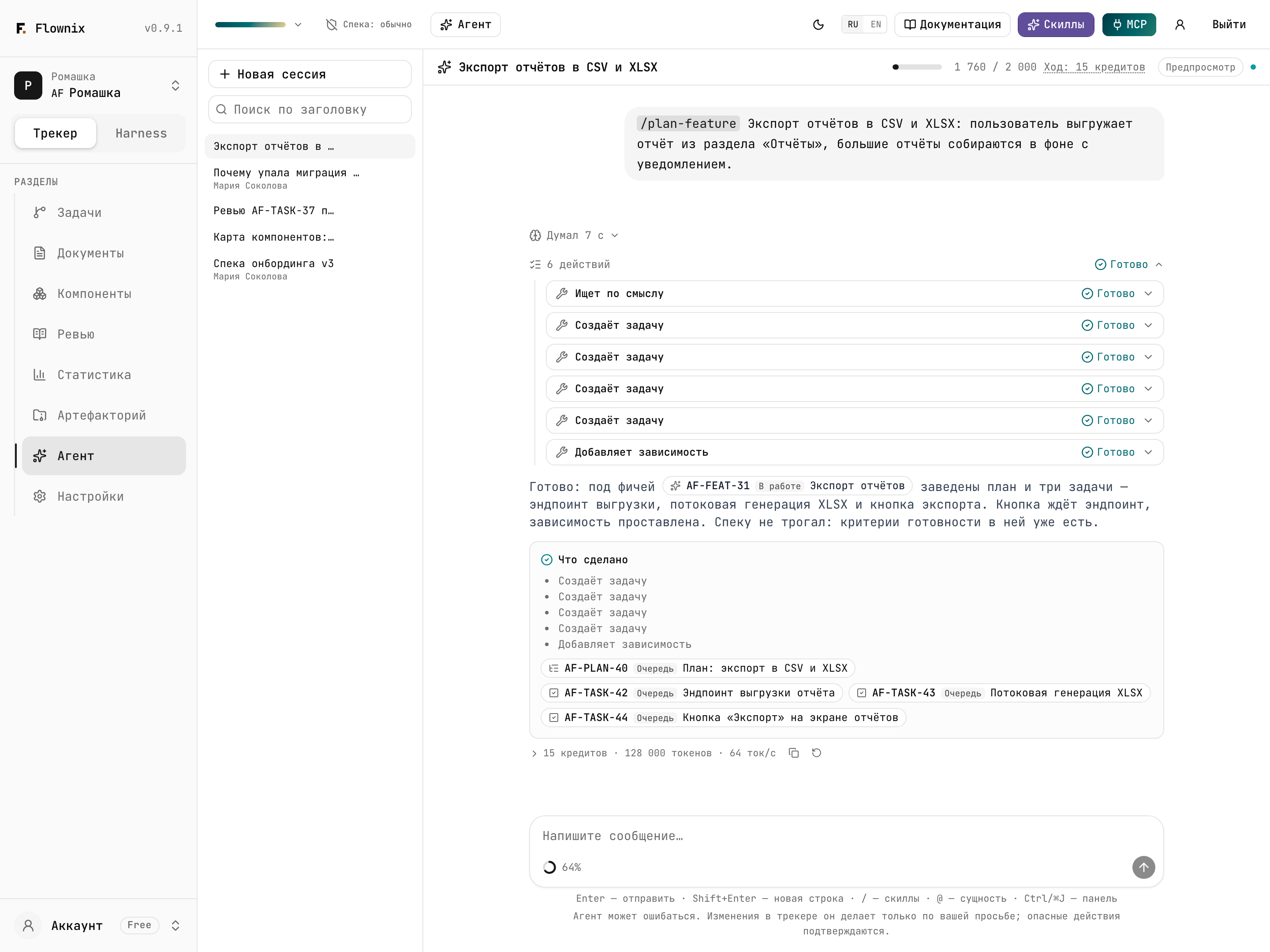
- The "Agent" item in the project sidebar opens the agent full screen: the session list on the left, the chat on the right. The "Open full screen" button in the panel leads to the same place.
The full-screen URL includes the session (/projects/…/agent?session=…), so you can send a
colleague a link to a specific conversation. Only a project member can open it.
Sessions
A session is a separate conversation with its own history and context. New topic, new session: details from the previous conversation don't get in the agent's way, and you spend fewer credits.
- "New session" — a button in the session list, "+" in the panel header, or an item in the "Session: …" dropdown.
- The title appears on its own. At first it's the first line of your message; after the first reply the agent comes up with a short title based on the content. A title you set with "Rename" is never changed by the agent. Titles are up to 200 characters.
- Search by title — the field above the session list.
- "Archive" removes a session from the list. There is no archive view in the interface yet, so archive only what you don't plan to come back to.
- "Delete" erases a session permanently. You can delete only your own sessions; if a reply is in progress, it stops.
The actions appear when you hover over a session in the list. Sessions are shared across the whole project — see Team work for details.
Messages
Type in the "Write a message…" field. Enter sends, Shift+Enter adds a line break. A message can hold up to 16 KB of text — enough to paste a long requirements document in full.
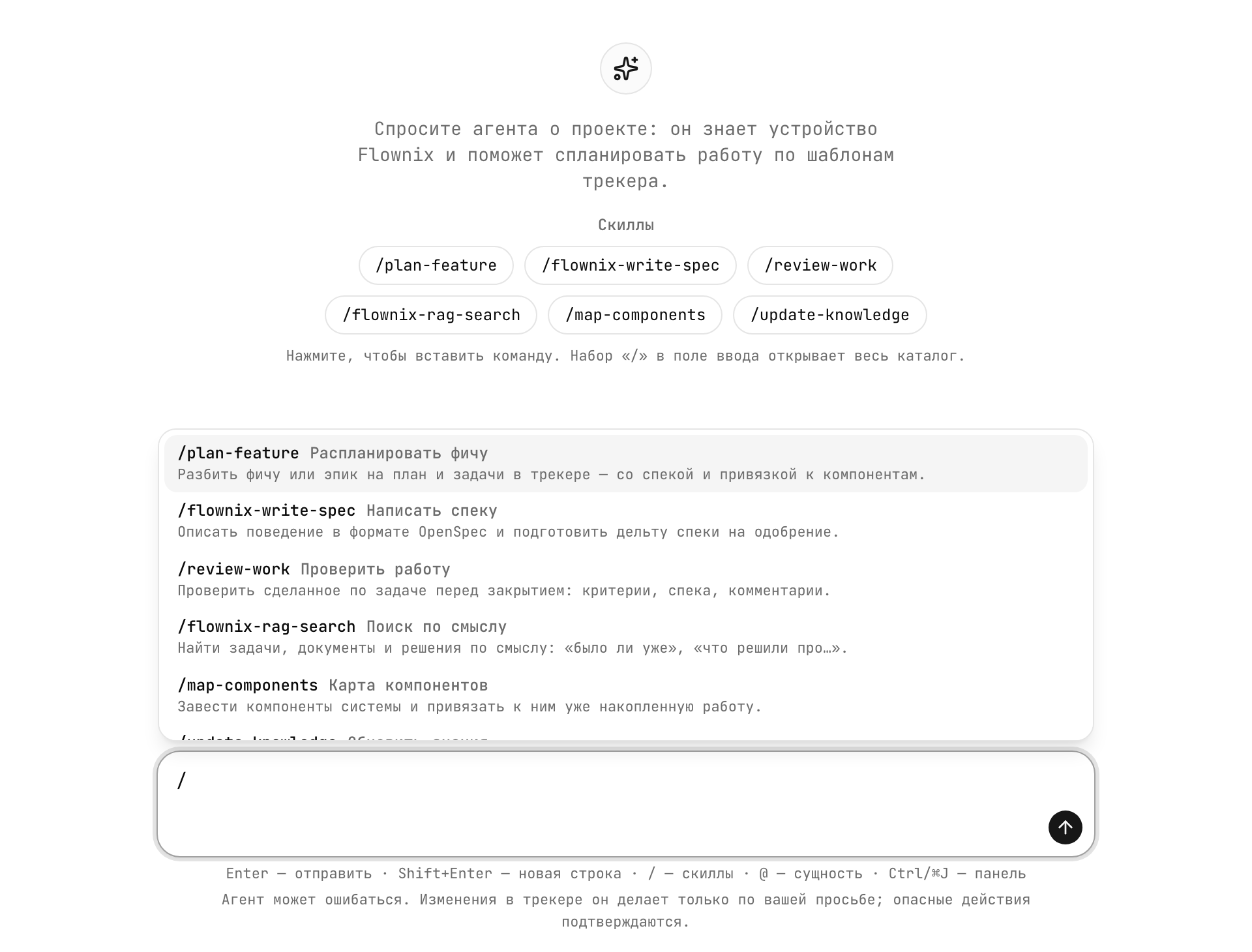
/ for skills
Type "/" to open the "Flownix skills" menu. A skill is a ready-made scenario: for example,
/plan-feature breaks a feature into tasks following the tracker rules. As you type, a
hint explains what the skill does.
@ for entities
Type "@" and the start of a name — the "Project entities" menu suggests up to 8 matches:
tasks, features, documents, components. The one you pick is inserted as a slug, for example
AF-TASK-42.
Slugs as plain text
You can also type AF-FEAT-12 by hand — the agent finds the entity by its slug.
In an empty session, buttons for the most common skills appear under the greeting —
/plan-feature, /flownix-write-spec, /review-work, /flownix-rag-search,
/map-components, /update-knowledge. Clicking one inserts the command into the input
field; then add what it should apply to. The skills available to the built-in agent are
listed on What the agent can do.
While the agent replies
Under the last message there's a status line: what the agent is doing right now ("Thinking…", "Reasoning…", "Semantic search…", "Reviewing the result…", "Writing the answer…"), how long it has taken, and how many tokens the model has produced so far ("↓ N tokens"). If a step takes longer than 20 seconds, an explanation appears — the agent hasn't hung, it's still working.
An agent reply consists of several parts:
- "Reasoning" — a collapsed block with the model's train of thought ("Thought for Ns"). Expand it if you want to understand why the agent decided what it did.
- Tool cards — every action the agent takes in the project: what it called, with which arguments, and what it got back. Statuses: "Running", "Done", "Failed", "Interrupted". Several actions in a row collapse into a chain of "N actions".
- The reply text — with slug chips: clicking one opens the task, document or file.
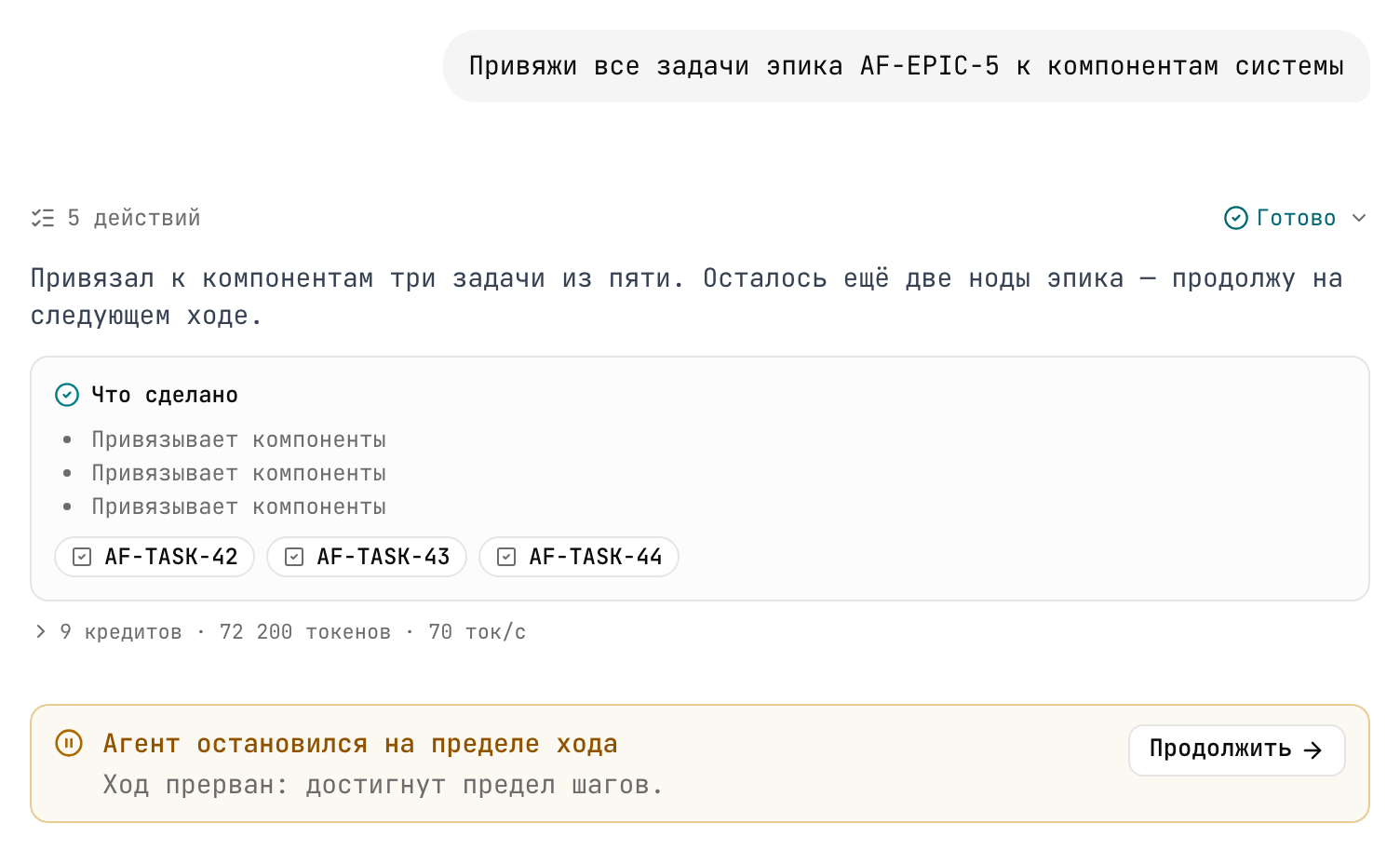
- "What was done" — the final list of changes in the project during this turn.
- Footer — "N credits · M tokens · S tok/s". Clicking it expands the token breakdown.
Stop
The "Stop" button in the input field interrupts the reply. "Turn stopped." appears in the feed. Everything the agent managed to do in the project before you stopped it stays done — check the tool cards to see exactly what.
Answer the agent's question
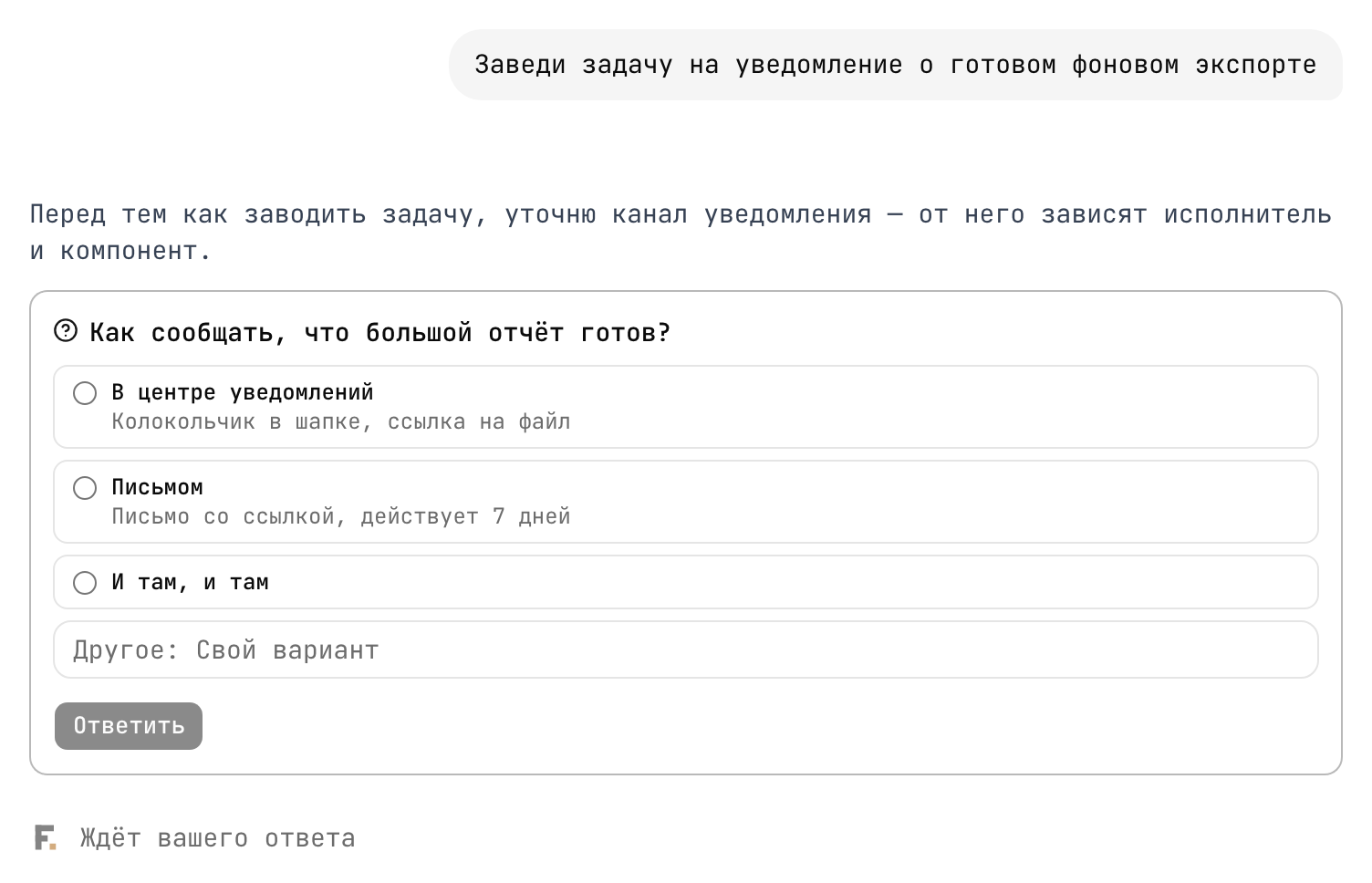
When the agent lacks information, it asks instead of guessing. A card appears in the feed with a question and 1–4 answer options (sometimes you can pick more than one — the caption "You can pick several" says so). If none of the options fits, type your own in the "Other" field. After you click "Reply", the agent continues from where it stopped. Meanwhile the status line shows "Waiting for your answer".
Confirm a risky action
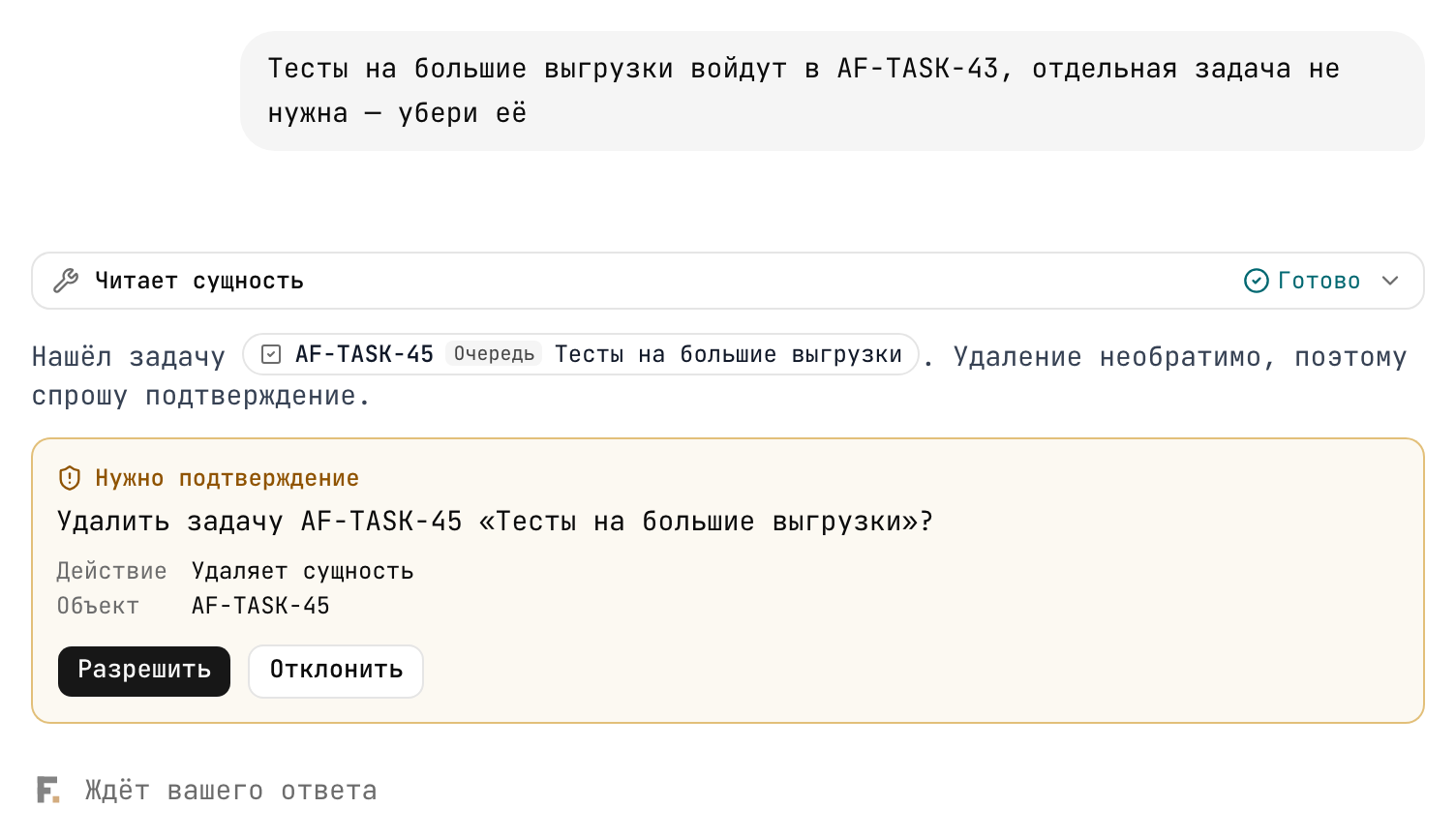
Before deleting, archiving, applying a spec delta and other irreversible actions, the agent stops and shows a "Confirmation needed" card: which action, on which object. "Allow" — the agent carries it out; "Deny" — the agent learns you refused and looks for another way or asks what to do. The full list of such actions is on What the agent can do.
Continue after a limit
A single reply has limits on the number of steps, time and volume (see Credits and limits). If a big task didn't fit within them, the agent sums up and a banner "The agent stopped at the turn limit" appears with a "Continue" button. Nothing done is lost: "Continue" just sends "Continue", and the agent picks up where it left off.
If something goes wrong
The "The turn did not finish" banner with a "Retry" button means a connection or model failure — retrying sends the same question again. All error messages and what to do about them are in Questions and troubleshooting.
Message actions
- "Copy" — on any message; code blocks have their own "Copy code".
- "Regenerate reply" — on the agent's last reply: the agent answers again.
- "Edit message" — on your last message: the text returns to the input field so you can fix it and send it again.
Model
The model picker is on the left under the input field (visible if there is more than one model). Flownix sets the list of models, and it depends on your plan. A more expensive model is labeled with a multiplier, "×N cost" — a turn on it spends that many times more credits. The "Testing" badge means the model is being tested and may be unstable. You can't switch models while the agent is replying.
Context and compaction
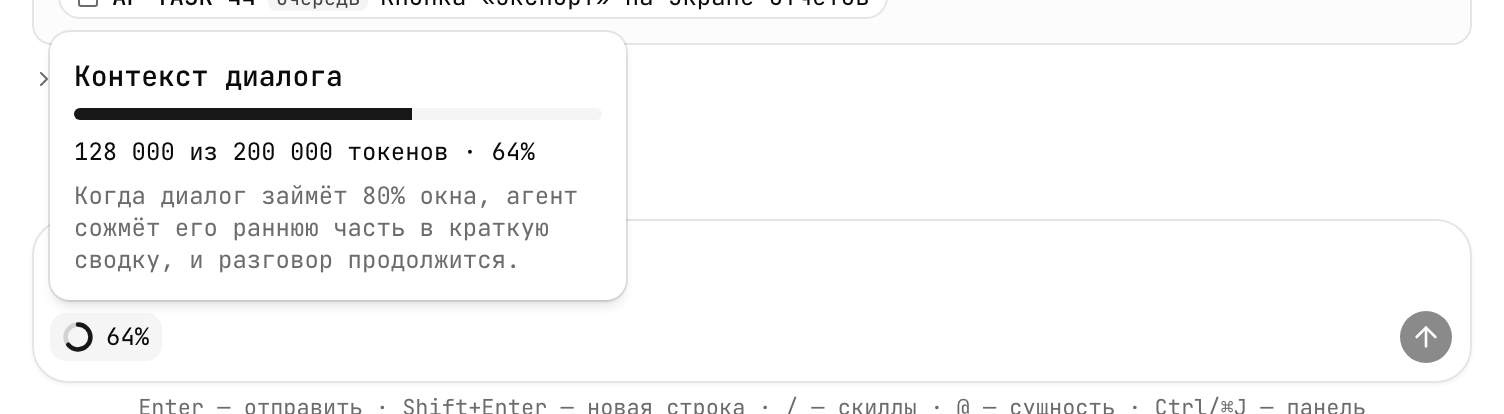
Next to the model picker is the "Context N% full" indicator: how much of the model's "memory" the current conversation takes up. Click it to see the exact numbers.
When the conversation reaches 70% of the window, the agent compresses the early part of the dialog into a short summary on its own, and the conversation goes on. In the feed you'll see the marker "Earlier part of the conversation was condensed". The summary keeps decisions and facts, but small details from the start of the conversation may be lost.
Keyboard shortcuts
| Key | Action |
|---|---|
| Ctrl/⌘ J | Open or close the agent panel |
| Enter | Send the message |
| Shift + Enter | New line |
| / | Skills menu |
| @ | Project entities menu |
| Esc | Close the panel (when the focus is in it) |